

Webhook Configuration
Configure and manage Docutray webhooks — register endpoints, choose events, and secure delivery so your app reacts to document processing in real time.
This guide will show you how to configure and manage webhooks in your Docutray account.
Create a New Webhook
Step 1: Access webhook settings
-
Sign in to your Docutray account at https://app.docutray.com/login
-
Select the organization you want to work with
-
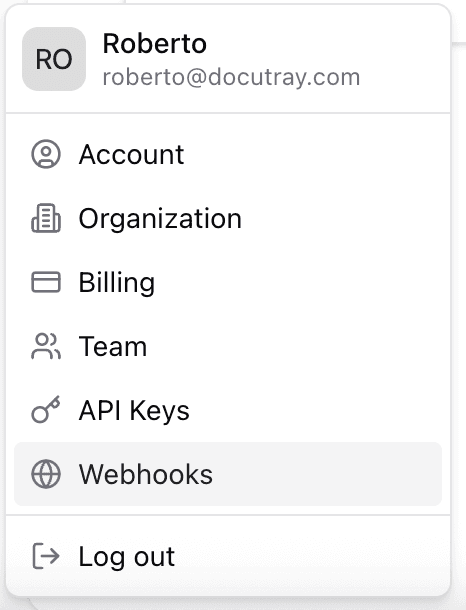
Navigate to "Settings" > "Organization" > "Webhooks" in the navigation menu
Step 2: Create a new webhook
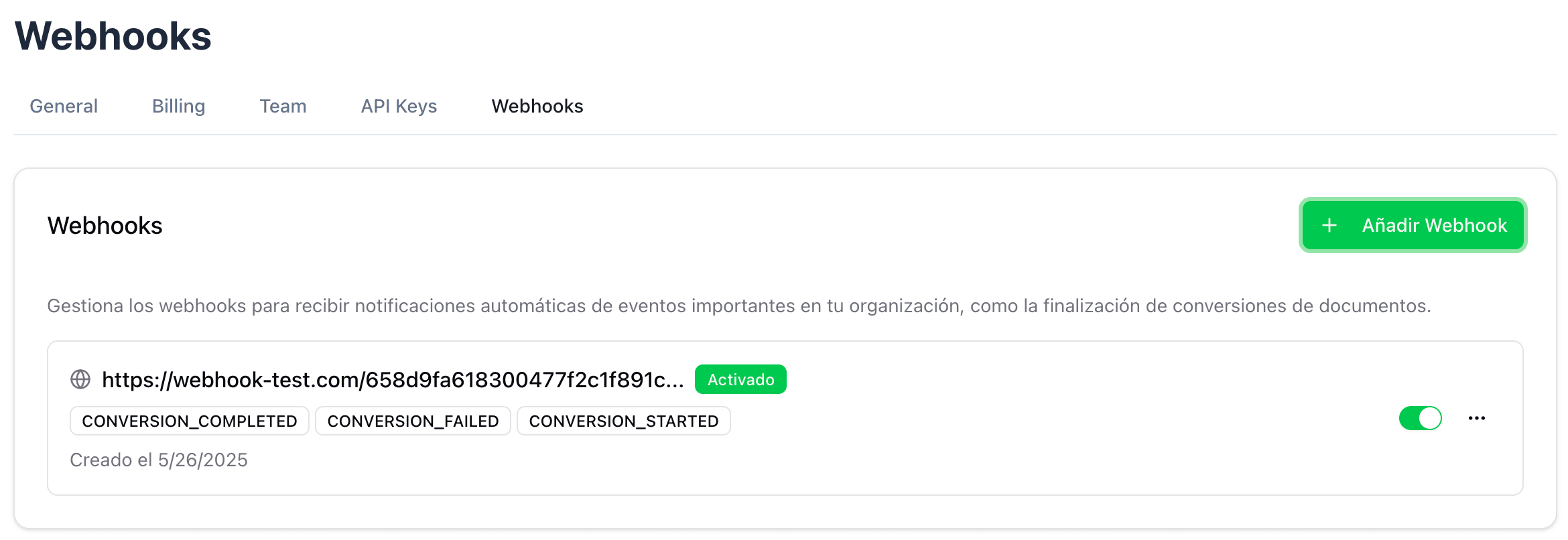
- Click the "Add Webhook" button
- Complete the required fields in the form:
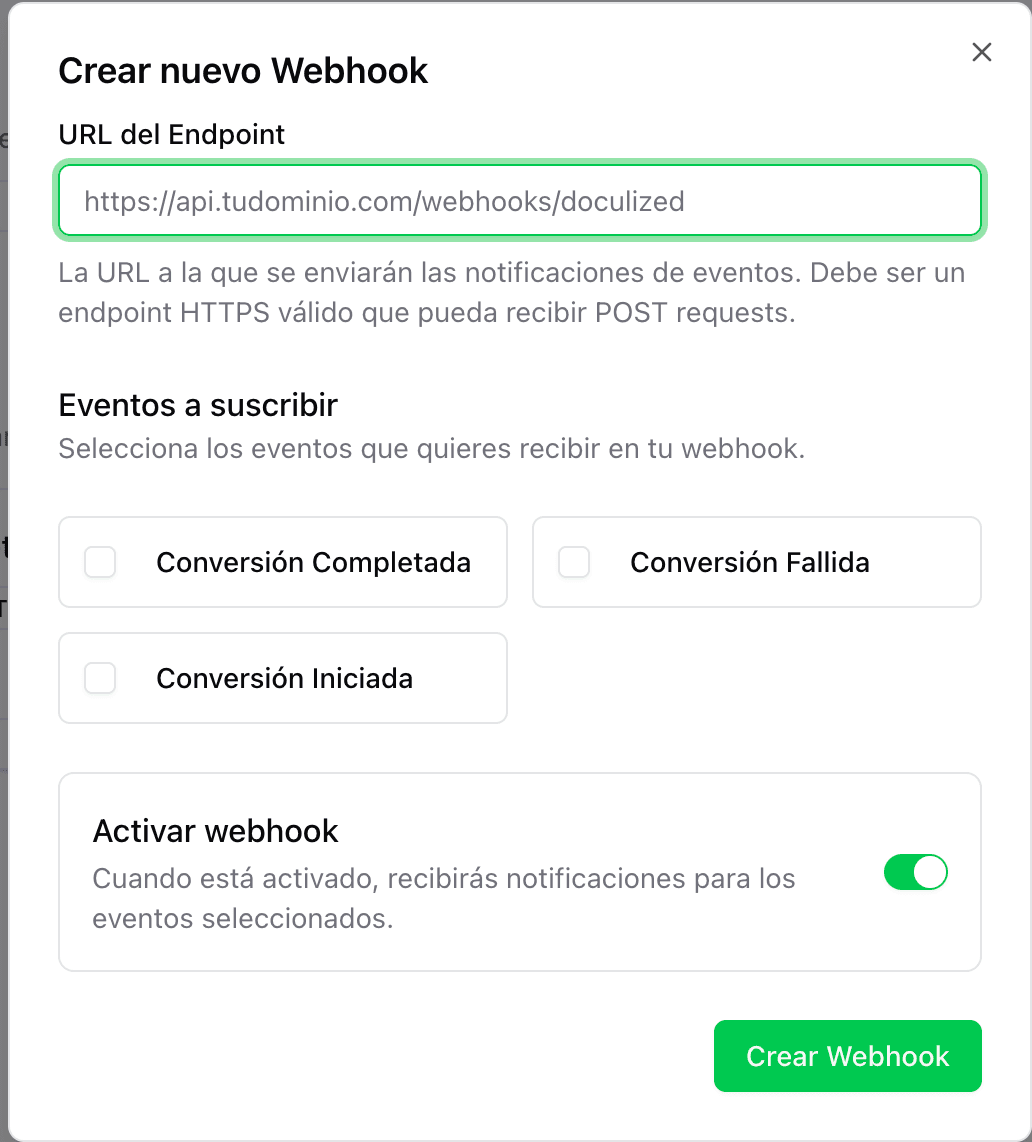
- Endpoint URL: The HTTPS URL where you'll receive notifications
- Events: Select the types of events you want to receive:
- Conversion Events:
CONVERSION_STARTED,CONVERSION_COMPLETED,CONVERSION_FAILED - Identification Events:
IDENTIFICATION_STARTED,IDENTIFICATION_COMPLETED,IDENTIFICATION_FAILED - Steps Events:
STEP_STARTED,STEP_COMPLETED,STEP_FAILED
- Conversion Events:
- Enabled: Allows you to activate or deactivate the webhook
-
Click "Create Webhook"
-
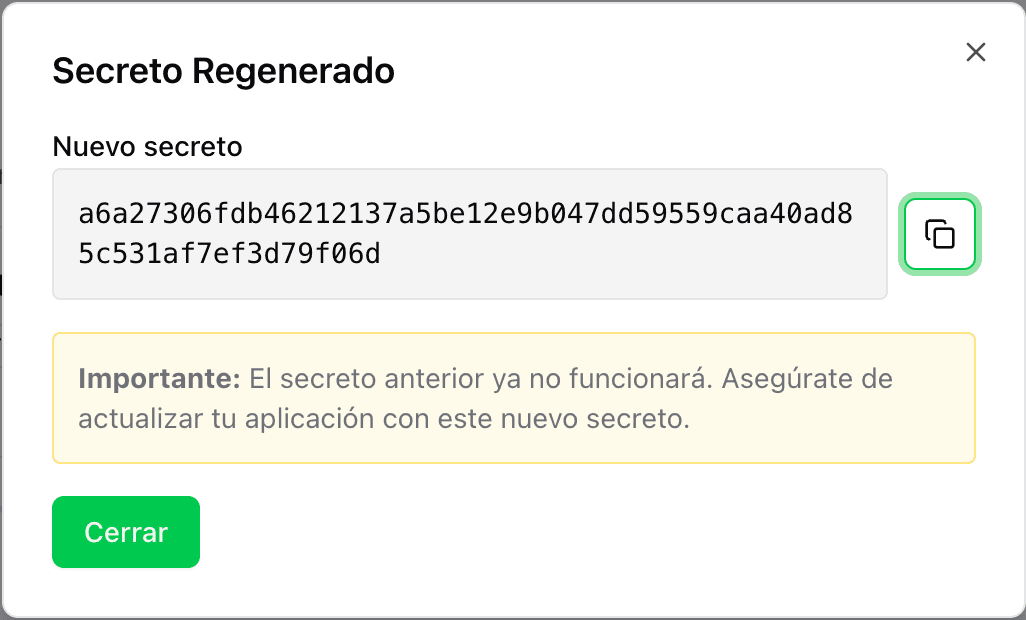
Important: Copy and save the automatically generated secret. This secret is used to verify the authenticity of requests.
Step 3: Configure your endpoint
Your endpoint must meet the following requirements:
- Protocol: Be publicly accessible via HTTPS
- Response: Respond with a 200-299 status code to confirm receipt
- Format: Process POST requests with Content-Type
application/json - Response time: Respond in less than 30 seconds
Webhook Management
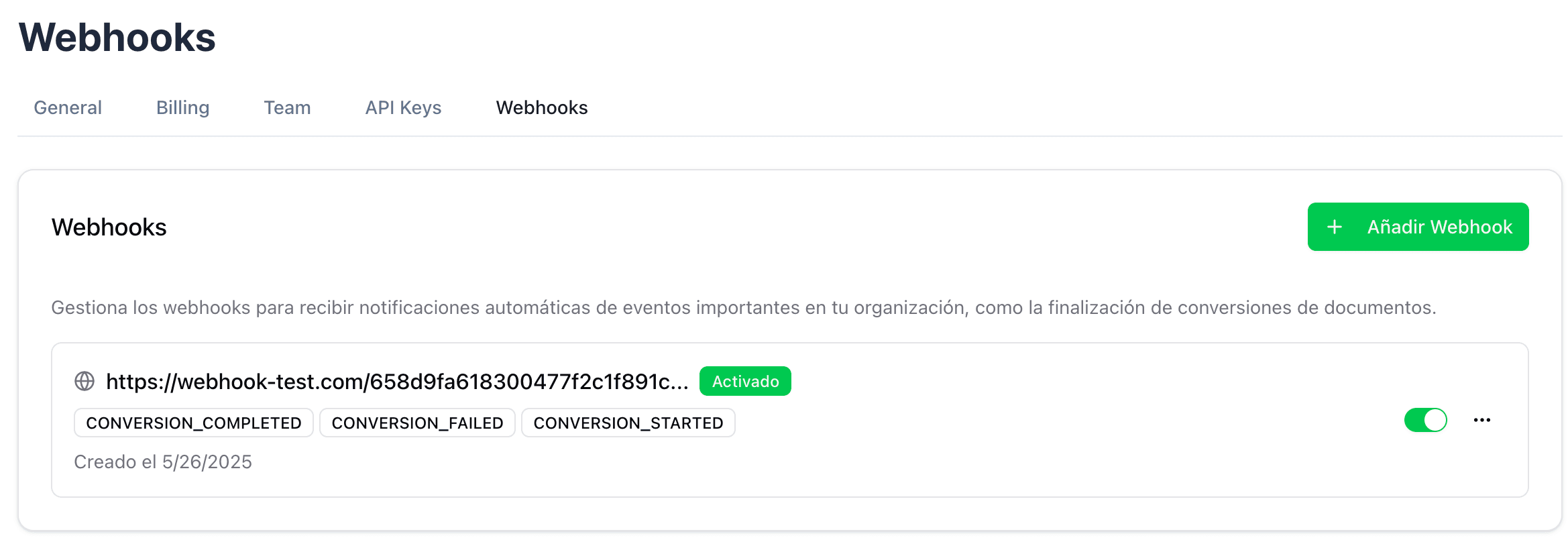
View configured webhooks
On the webhooks page you can see all configured webhooks:
Edit a webhook
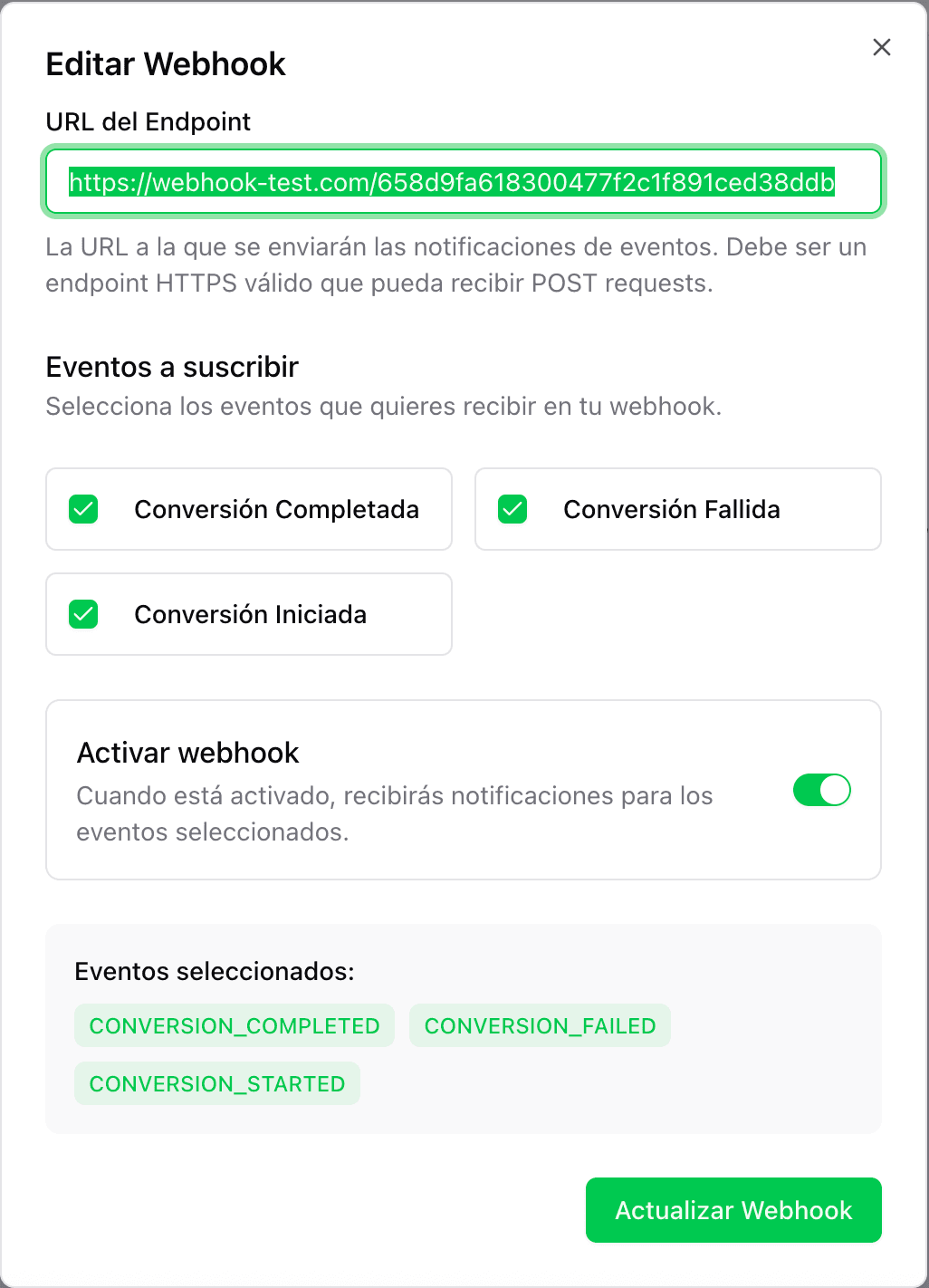
- Click the options menu (⋯) of the webhook you want to edit
- Select "Edit"
- Modify the necessary fields
- Click "Update Webhook"
Enable/Disable a webhook
You can enable or disable a webhook using the toggle switch in the webhook list, without needing to delete it.

Regenerate secret
If you need to change the secret:
- Click the options menu (⋯) of the webhook
- Select "Regenerate secret"
- Copy and save the new secret
Note: The old secret will stop working immediately.
Delete a webhook
- Click the options menu (⋯) of the webhook
- Select "Delete"
- Confirm deletion
Note: This action cannot be undone.
Data Structure
HTTP Headers
Each webhook request includes the following headers:
Content-Type: application/json
User-Agent: Docutray-Webhook/1.0
X-Docutray-Signature: sha256=<hmac_signature_body>
X-Docutray-Auth-Signature: sha256=<hmac_signature_auth>
X-Docutray-Timestamp: <unix_timestamp>
X-Docutray-Request-Id: <uuid>
X-Docutray-Event: <event_type>
Header Description
- X-Docutray-Signature: HMAC signature based on message body
- X-Docutray-Auth-Signature: HMAC signature based on metadata (for Lambda Authorizers)
- X-Docutray-Timestamp: Unix timestamp in seconds
- X-Docutray-Request-Id: Unique UUID for each delivery
- X-Docutray-Event: Event type (e.g.,
CONVERSION_COMPLETED)
Recommendations
Reliability
- Respond quickly (within 30 seconds)
- Implement idempotent processing
- Log received events for debugging
- Use a message queue for asynchronous processing if needed
Error handling
- Docutray will retry up to 5 times with exponential backoff
- If your endpoint doesn't respond consistently, the webhook may be automatically disabled
- Retries follow this sequence: 30s, 1min, 5min, 15min, 1hour
Testing
- Use tools like webhook.site to test webhook reception
- Implement a test endpoint before production
- Verify that your firewall allows connections from Docutray servers
Next Steps
- Security: Implement signature verification to protect your endpoint
- Conversion Events: Learn about document conversion webhooks
- Identification Events: Learn about identification webhooks
- Steps Events: Learn about steps webhooks
- Examples: Review sample code to implement webhooks
Webhooks
Receive real-time Docutray notifications via webhooks — configure endpoints for conversion, identification, and step events with secure signed delivery.
Conversion Events
Docutray conversion webhooks — real-time callbacks fired while a document is processed, delivering the extracted structured data to your endpoint.