

Getting Started
Get started with DocuTray — create an account, generate an API key, and run your first OCR document conversion in minutes.
This guide will help you get started with DocuTray quickly.
Creating an Account
To start using DocuTray, you need to create an account by following these steps:
- Visit the registration page at https://app.docutray.com/register
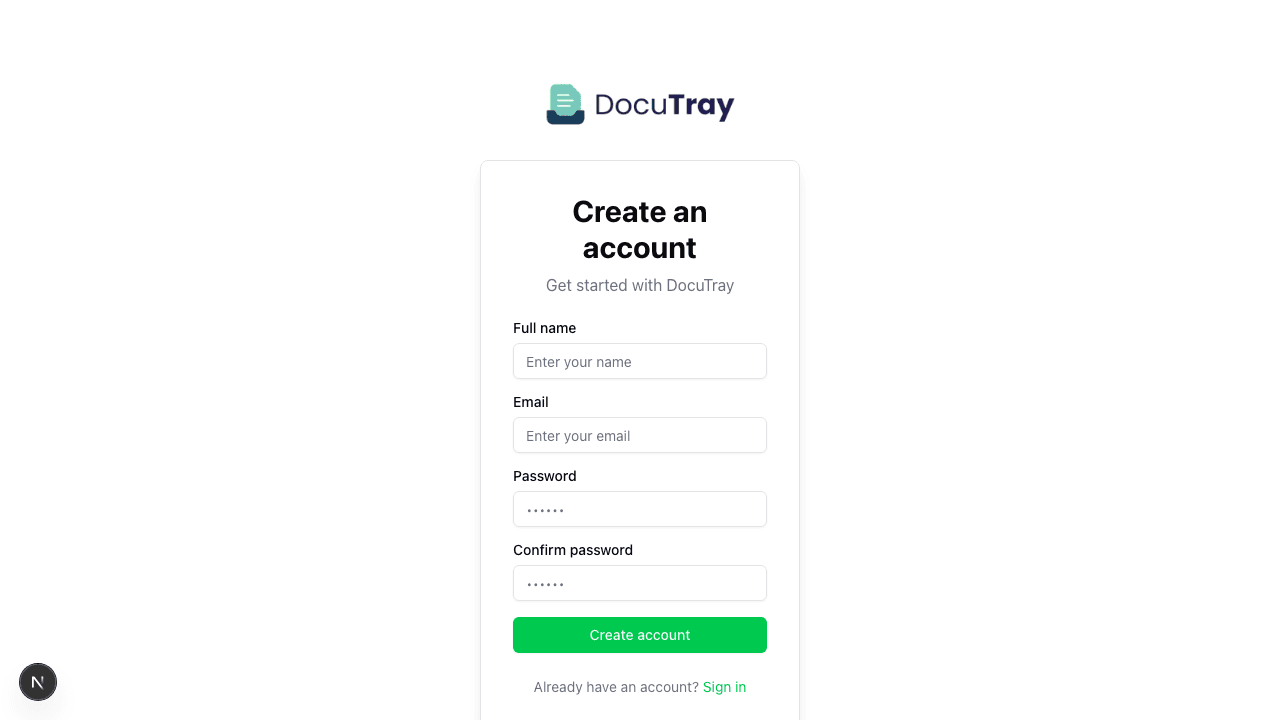
- Complete the required fields:
- Full Name: Enter your first and last name
- Email: Use a valid email address
- Password: Create a secure password (minimum 8 characters)
- Confirm Password: Repeat the password for verification
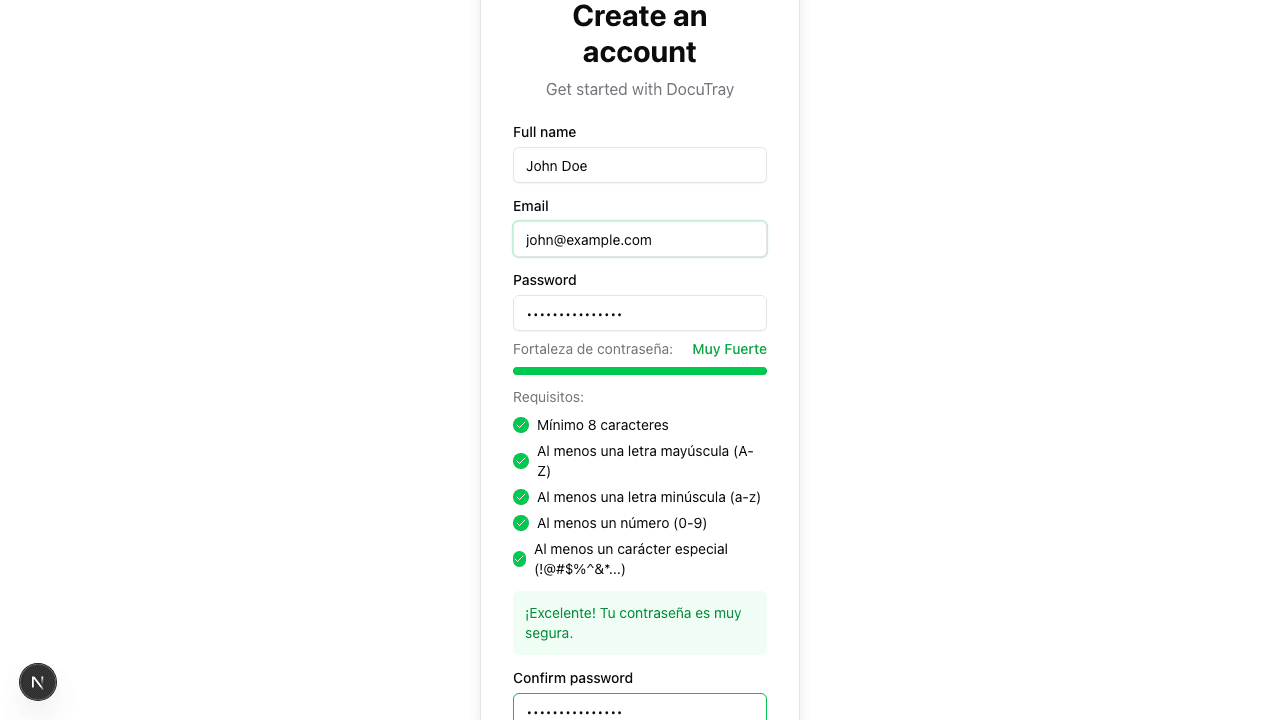
-
Click the "Register" button
-
You will receive a confirmation email at the provided address. Open this email and click the verification link.
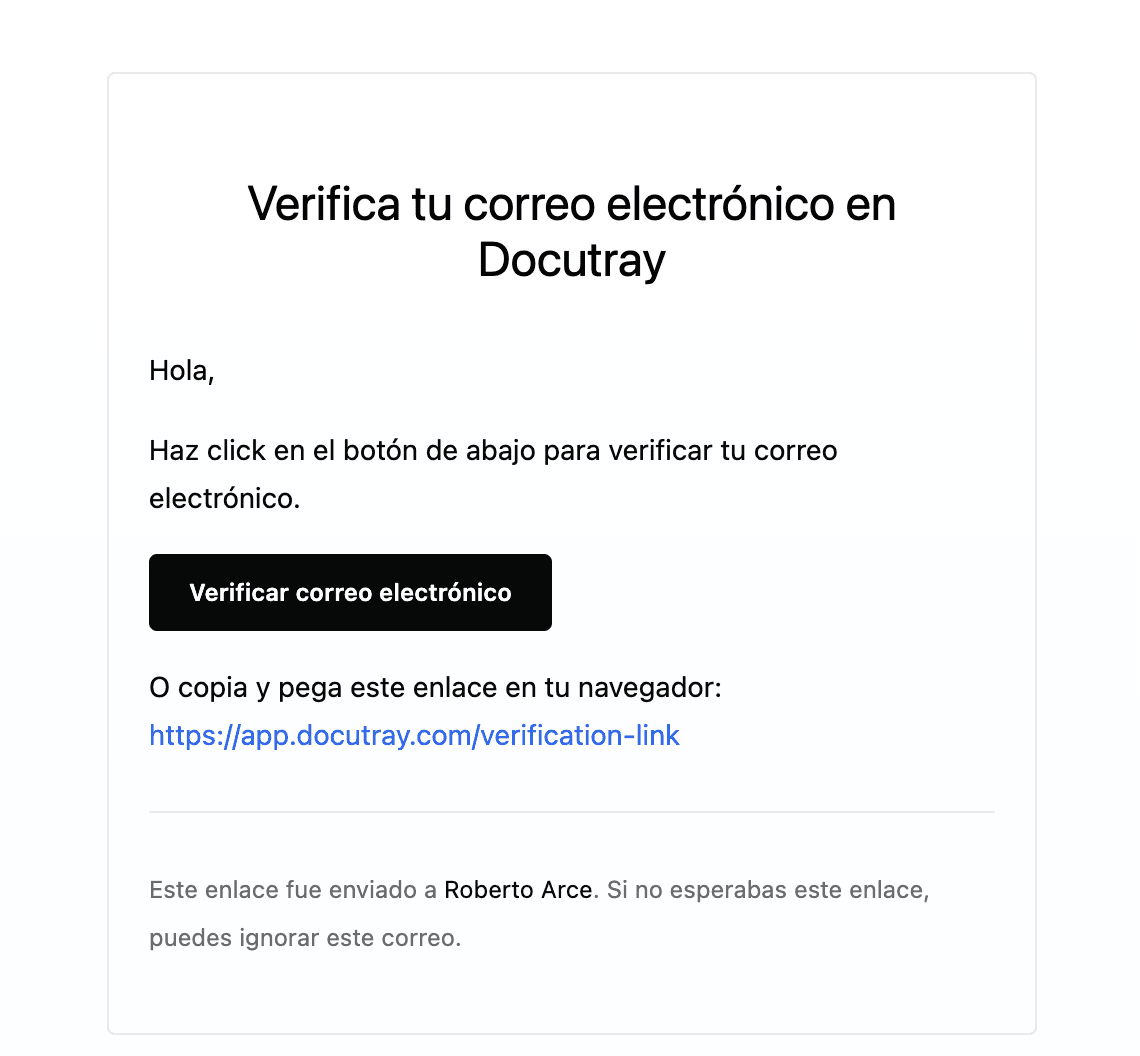
- Done! Once your account is verified, you can log in and start using DocuTray.
If you already have an account, you can go directly to the login page.
Creating an API Key
After creating your account, you can generate an API Key to integrate DocuTray with your applications by following these steps:
-
Log in to your DocuTray account at https://app.docutray.com/login
-
Select the organization you want to work with
-
Navigate to "Account" > "API Keys" in the navigation menu
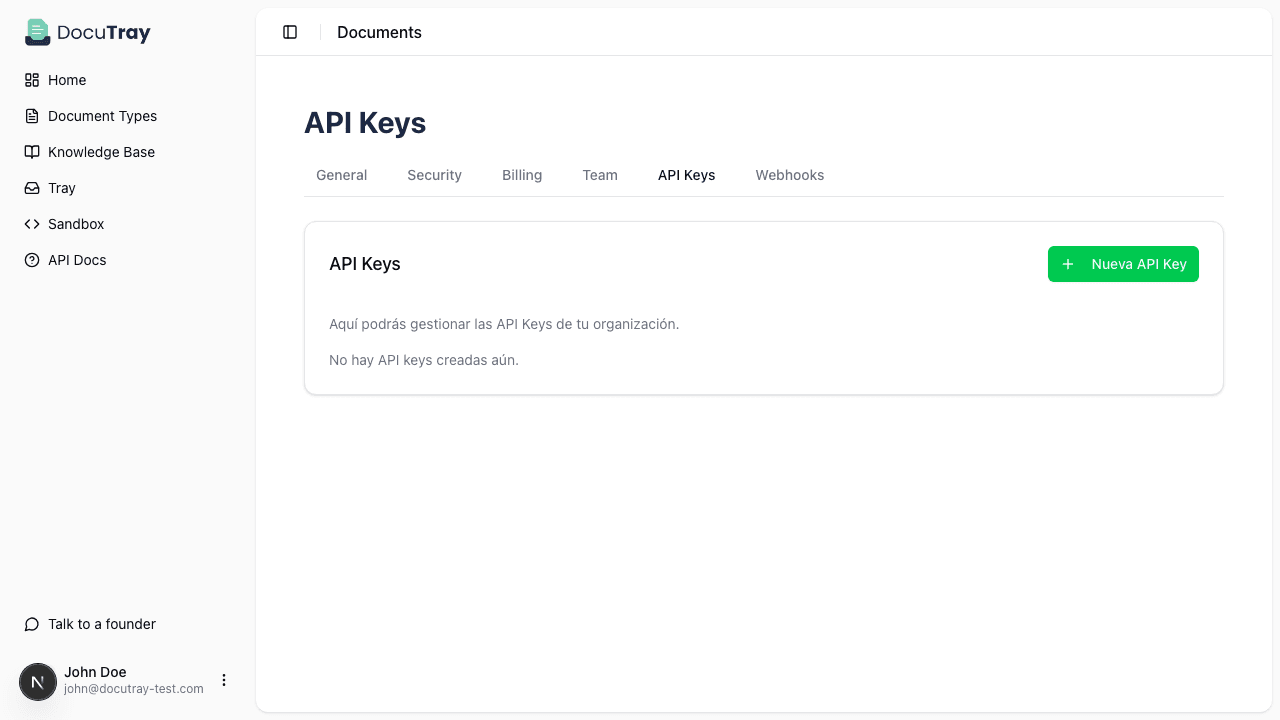
-
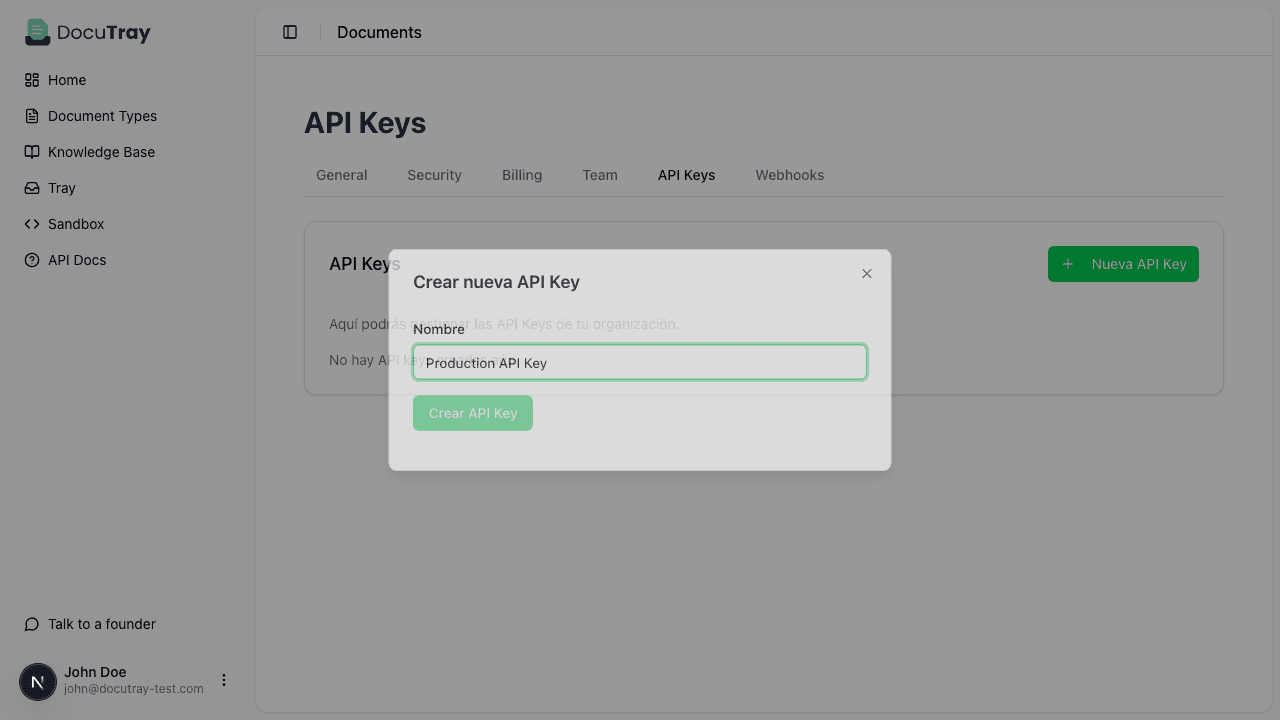
Click the "New API Key" button
-
Enter a descriptive name for your API Key and click "Create"
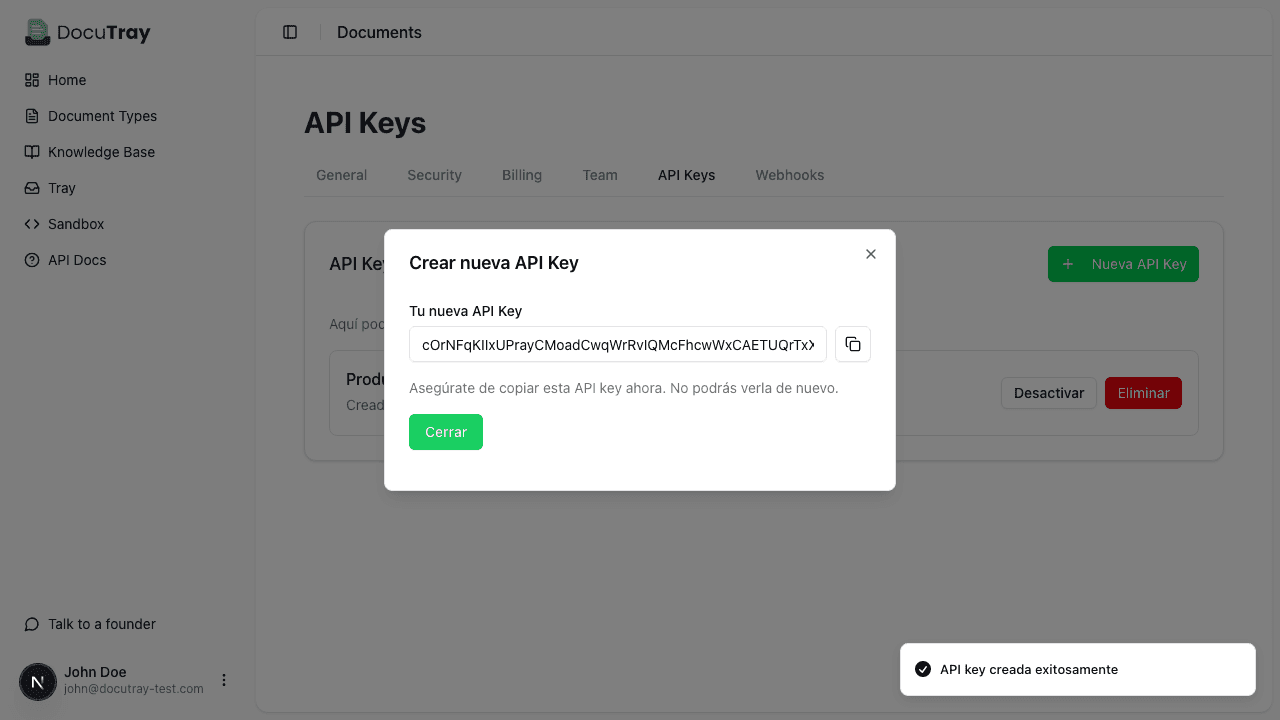
- Copy the generated API Key and store it in a safe place. Important: This will be the only time you can see the complete key.
You can now use this API Key to authenticate your requests to the DocuTray API.
Your First Conversion
Once you have your API Key, you can process your first document with a simple API call.
Supported File Formats
DocuTray supports the following file formats:
- Images: JPEG, PNG, GIF, BMP, WebP
- Documents: PDF (up to 100MB)
Install the SDK
pip install docutrayMaking the API Call
from pathlib import Path
from docutray import Client

client = Client(api_key="YOUR_API_KEY")

result = client.convert.run(
    file=Path("invoice.pdf"),
    document_type_code="invoice"
)

print(result.data)
Response
The API returns extracted data in JSON format according to your document type schema:
# result.data contains the extracted fields
{
    "numero_factura": "F-2024-001",
    "fecha_emision": "2024-01-15",
    "rfc_emisor": "XAXX010101000",
    "razon_social_emisor": "Empresa Ejemplo S.A. de C.V.",
    "subtotal": 1000,
    "iva": 160,
    "total": 1160
}Tip: For large files or batch processing, use async conversion which processes documents in the background:
status = client.convert.run_async(
    file=Path("large_document.pdf"),
    document_type_code="invoice"
)
# Poll for completion
final = status.wait()
print(final.data)
Next Steps
Now that you've completed your first conversion, explore these resources:
- Document Types — Browse available document types and their schemas
- API Reference — Complete API documentation with all endpoints
- Python SDK — Python SDK reference and guides
- Node.js SDK — Node.js SDK reference and guides
- Webhooks — Set up webhooks to receive conversion results automatically
- Guides — Step-by-step tutorials for common use cases